


Want to set up a WhatsApp community but not sure how it works? Don’t stress. You’re in the right place.
WhatsApp communities basically help you bring all your related groups together under one roof. So instead of running five different chats for sales, service or team updates, you get one clean space where everything stays organised.
If you’ve ever shared the same update in multiple groups, only to realise half the people missed it, this is for you. Communities let you:
But here’s the thing — if you’re trying it for the first time, setting up a community can feel a bit confusing. What’s the difference between a group and a community? Where do you add subgroups? How do you control who posts what?
That’s exactly what we’ll cover in this guide — step by step, without any jargon.
A WhatsApp community is like your control centre for managing multiple related groups in one place. Instead of posting the same message in five different WhatsApp groups, you create a community, add all those groups under it and share updates from one central spot.
For example: Let’s say you run a coaching institute. You have different groups for batches, parents and support queries. Rather than juggling separate chats, you can create a WhatsApp community and link all these groups together under that one community.
When you post in the community’s announcement group, it reaches all the linked groups at once, without having to copy-paste anything.
Here’s how it actually works:
This is especially useful for businesses, societies or schools that need to keep large numbers of people connected without spamming individual groups.
WhatsApp Community is designed to bring multiple related groups together under one organised space, without losing control or cluttering up everyone’s chats.
When you create a community, here’s what actually happens behind the scenes:
One community, multiple groups: You can add up to 50 different WhatsApp groups under a single community. For example, a real estate company could have separate groups for sales teams, support teams and customer updates — all managed under one umbrella.
Central announcement group: Every community comes with an announcement group. Only admins can send messages there, and those updates reach all community members instantly. This helps keep things clean — no back-and-forth chats, just key updates.
Privacy-first member controls: Members in different groups can’t see each other’s numbers or personal details. This is ideal for larger communities where privacy matters, like schools or public organisations.
Admin management tools: Community admins can:
File sharing and events: Groups within communities can share files up to 2GB, create polls and set event reminders. These features make coordination easier without needing separate tools.
Cross-platform access: You can manage your community on Android, iPhone and WhatsApp Web.
In simple words, instead of sending the same message in 10 different groups, you just post it once in your announcement group. Everyone gets it — no confusion, no repetitive and manual effort.
Related read: If you’re starting out with marketing in your business, read our blog on WhatsApp marketing to understand how you can use the WhatsApp platform for the same.
When it comes to managing conversations on WhatsApp, there are three main options now: groups, communities and channels.
At first glance, they might look similar, but each one is built for a different purpose. Knowing when to use which can save you a lot of confusion and extra effort.
Here’s a clearer breakdown:
Feature | WhatsApp Group | WhatsApp Community | WhatsApp Channel |
What’s it for | Small chats: teams, friends, families | Managing multiple related groups together | One-way updates from brands, creators or organisations |
Who can post | Everyone (unless admins restrict) | Subgroup members can chat, but only admins post in the announcement group | Only channel admins can post |
Member limits | Up to 1,024 members | Up to 50 groups per community, with 1,024 members each; up to 2,000–5,000 in the announcement group (latest beta) | Unlimited followers |
Privacy | Members see each other’s phone numbers | Phone numbers stay hidden within communities | Phone numbers and profile details stay hidden |
Admin control | Add/remove members, restrict posts | Add/remove groups, control announcements, transfer ownership, manage subgroups | Post updates, block forwards or screenshots and control follower permissions |
Interaction level | Two-way chats between all members | Subgroups: two-way chats; Announcement group: admin-only | One-way communication only |
Best use case | Friends, family, small teams | Large organisations, businesses, schools, societies | Brand updates, celebrity announcements, product launches |
Setting up a WhatsApp community on Android takes less than five minutes. Follow these simple steps:
Open WhatsApp on your Android phone.
Tap the Communities icon on the top left (next to your chat list).
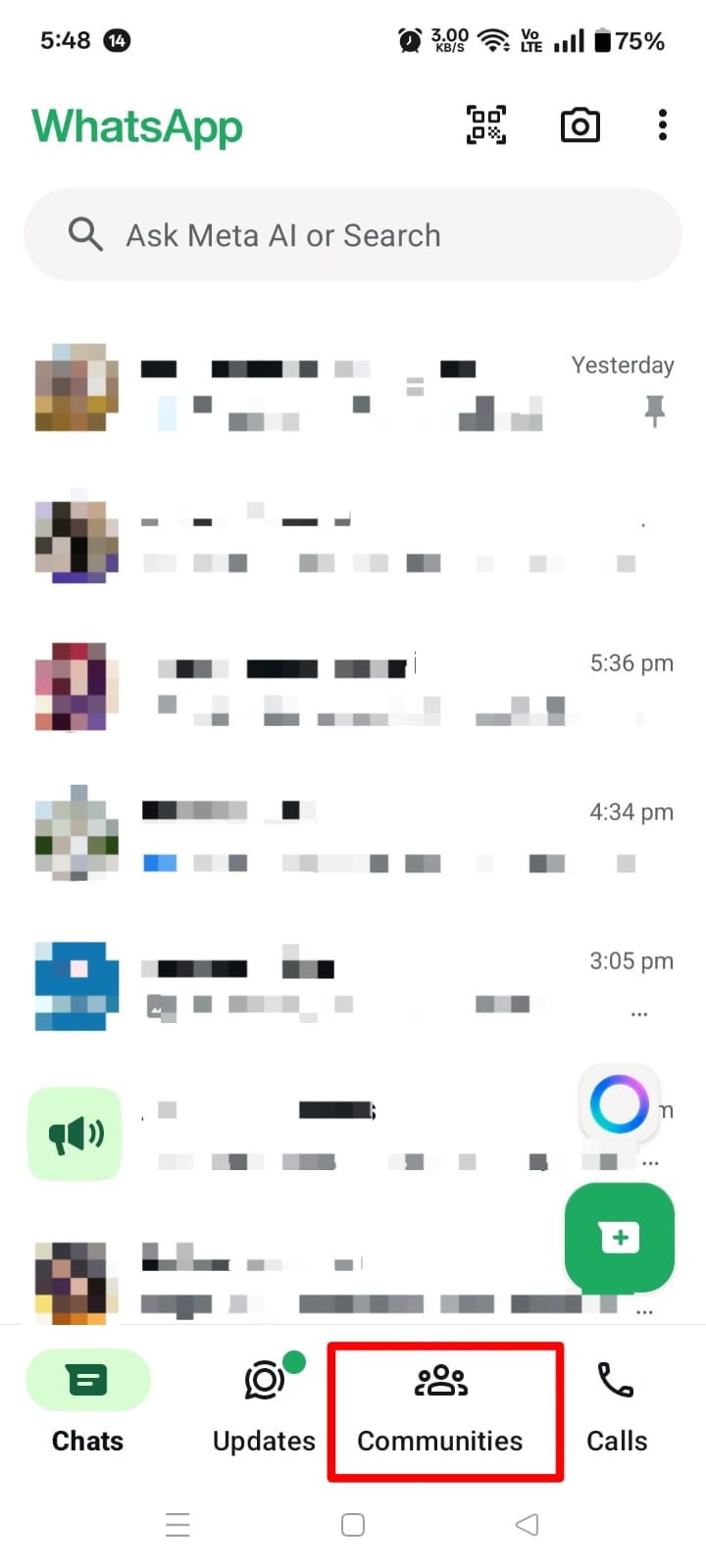
Tap New community. If it’s your first time, you’ll see a Get started button—tap that too.
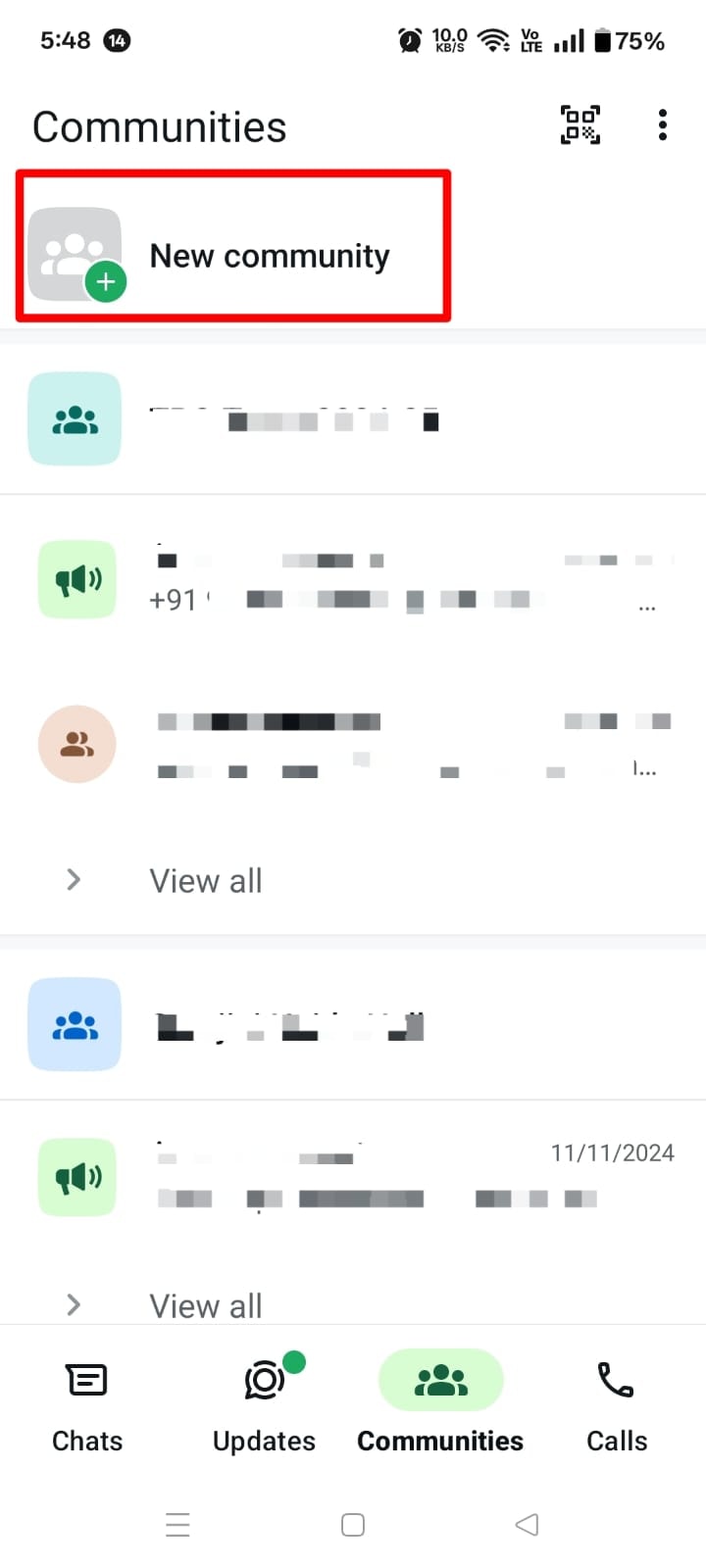
Note: Community names and descriptions can be up to 100 characters long.
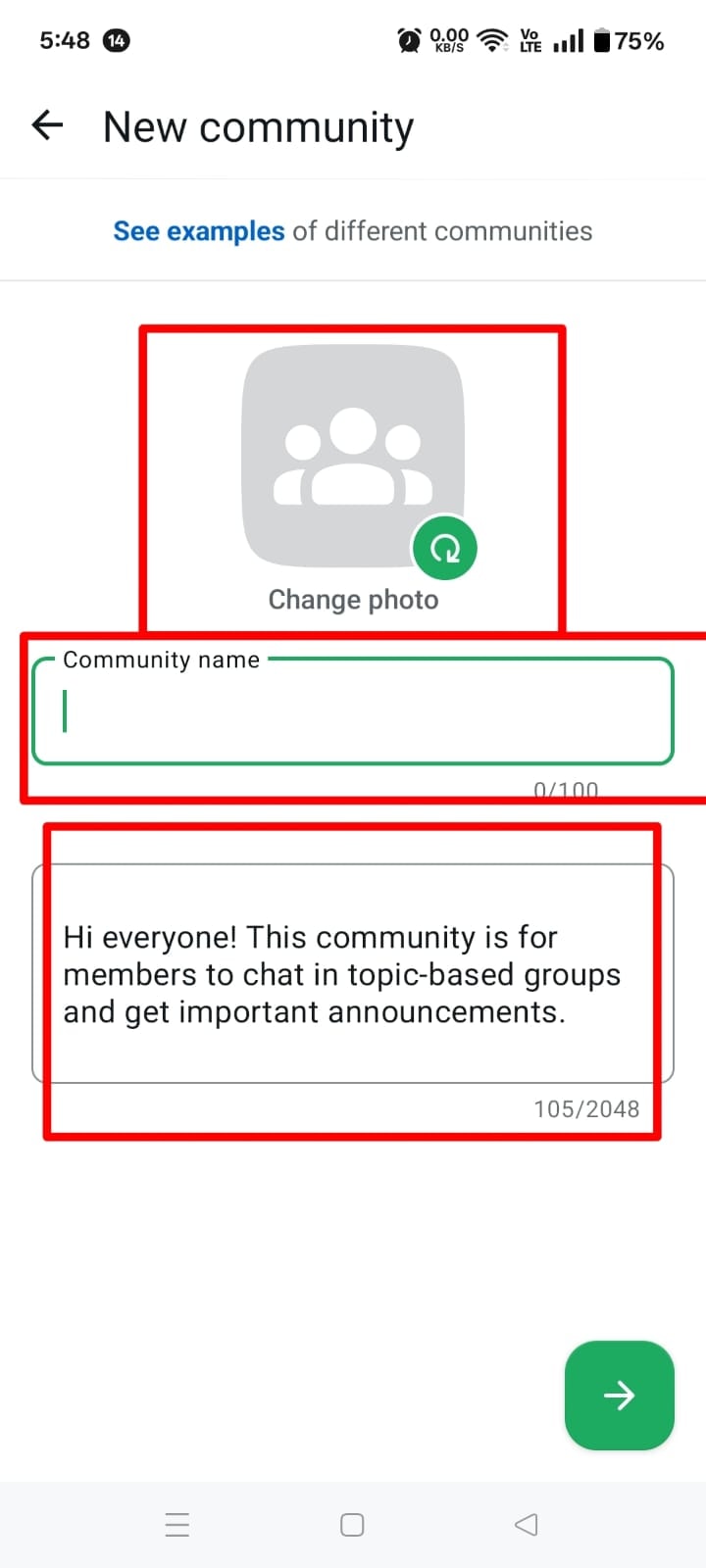
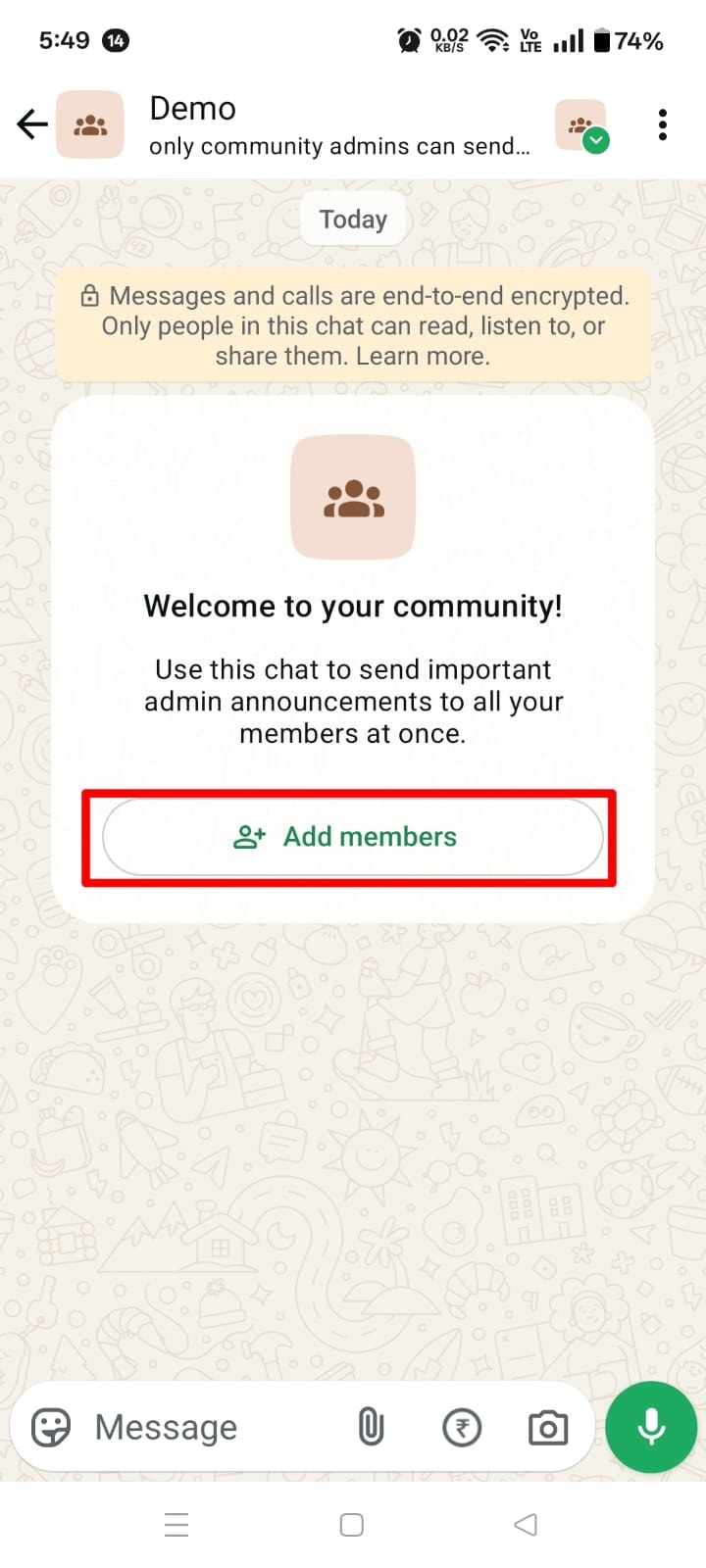
WhatsApp will now ask you to:
Pro tip: Create two groups to start with — one for announcements (admin-only) and one for general chats.
You can add up to 50 groups in one community. Each group can have up to 1,024 members.
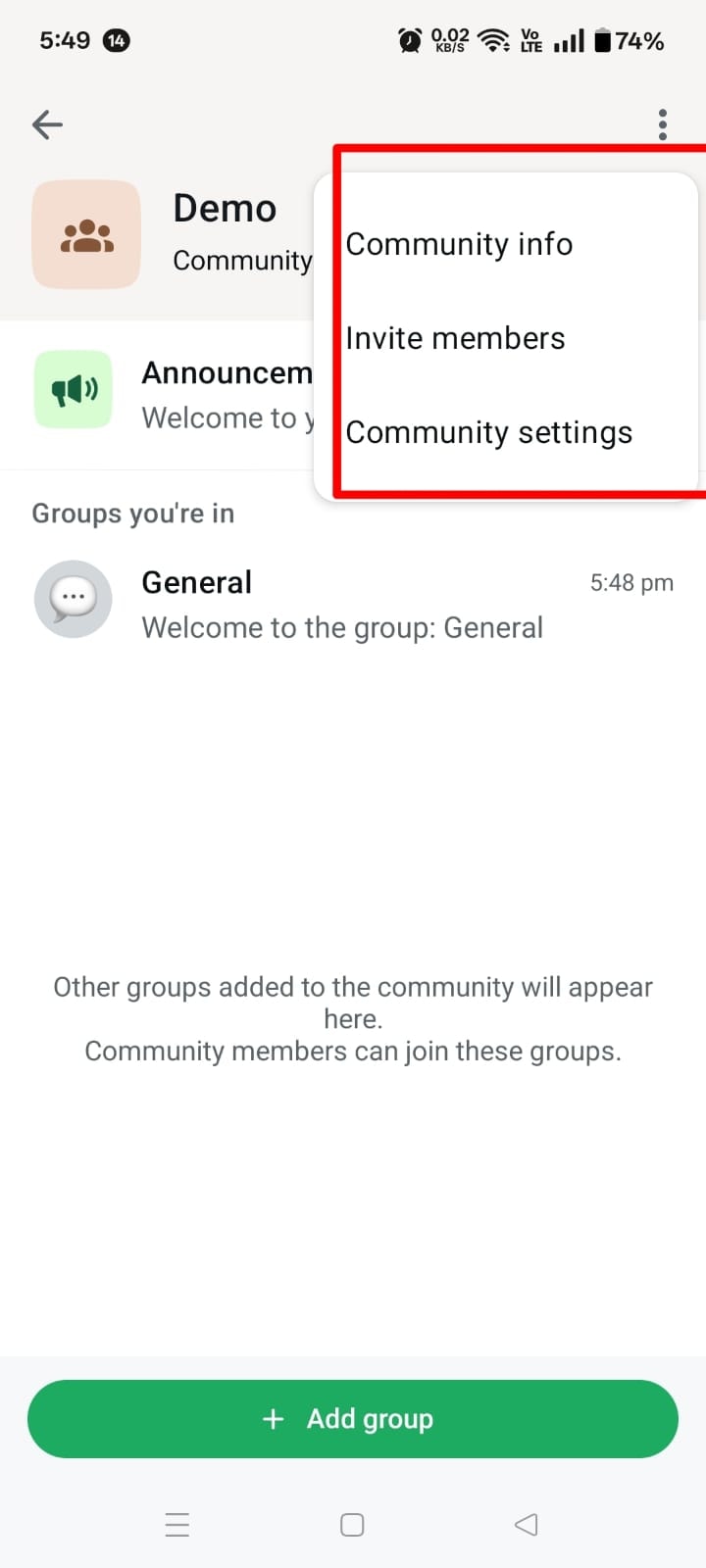
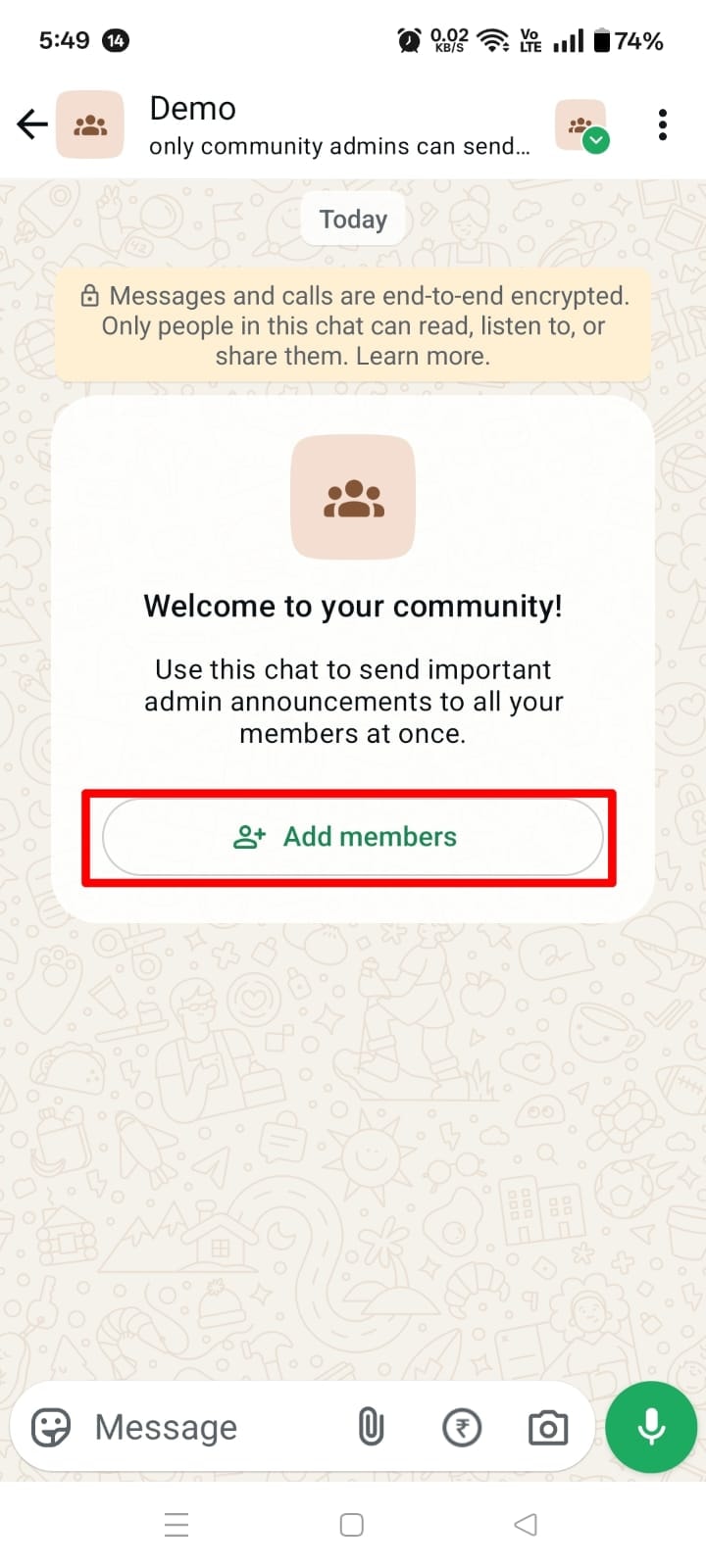
Setting up a WhatsApp community on your iPhone is almost the same as on Android, but a few button placements and labels are slightly different. Here’s the full process step by step:
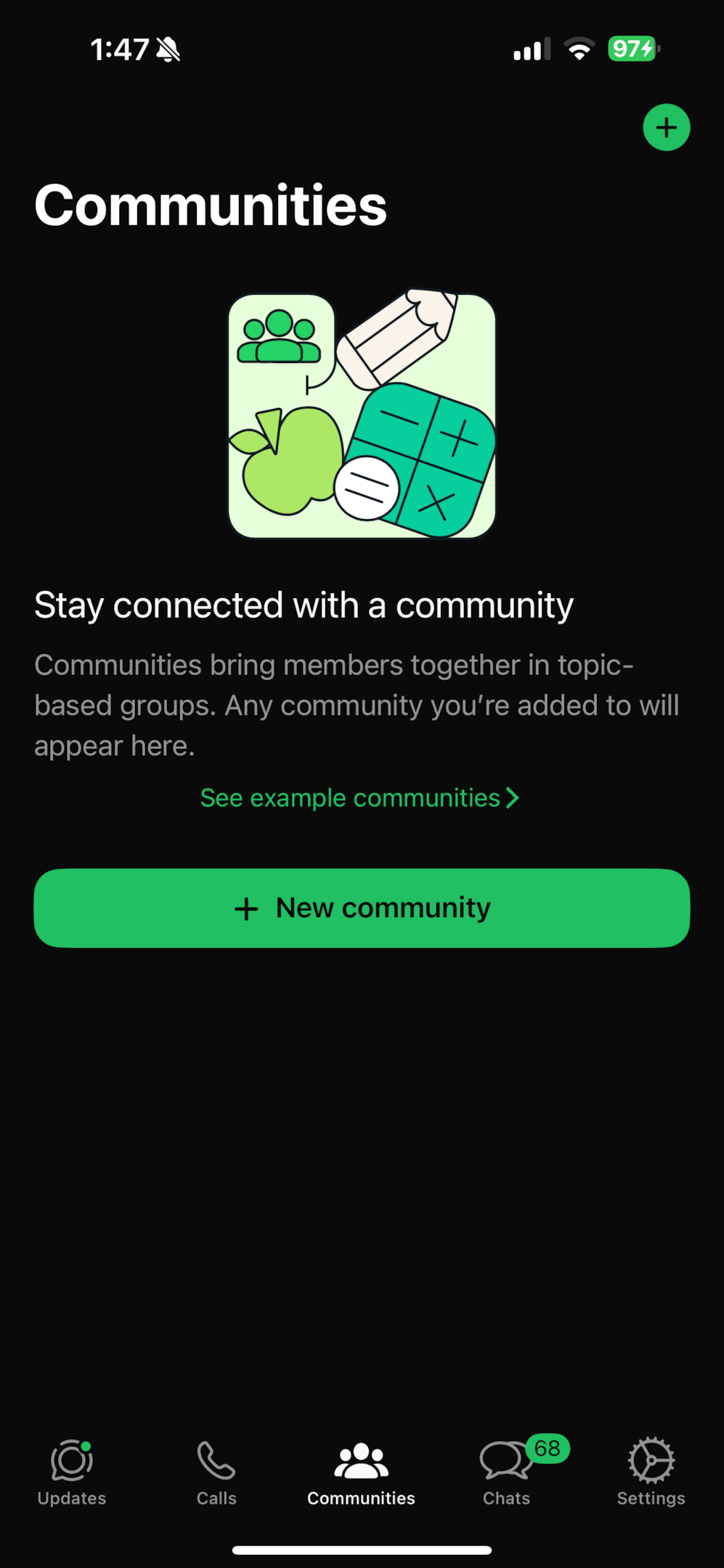
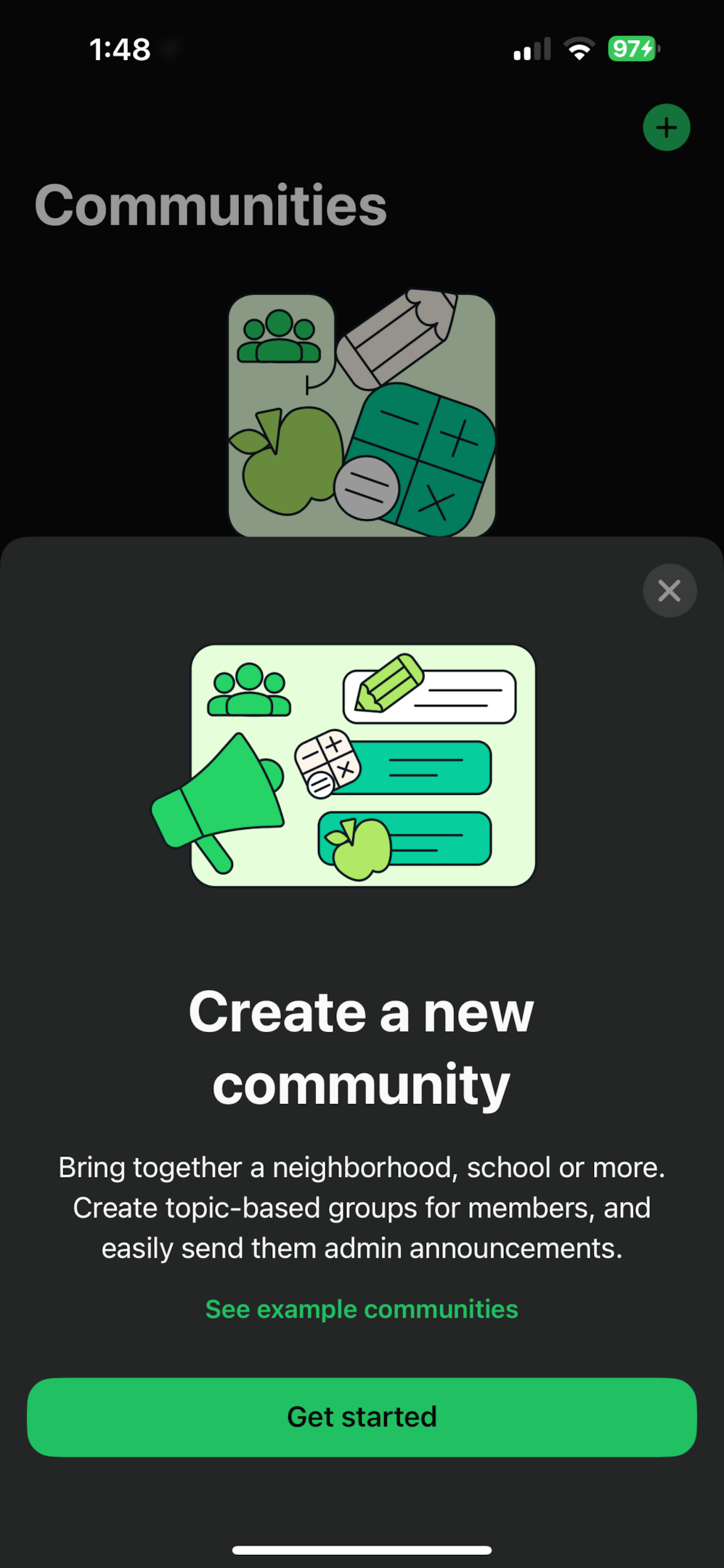
Note: iOS also allows up to 100 characters for both the community name and description.
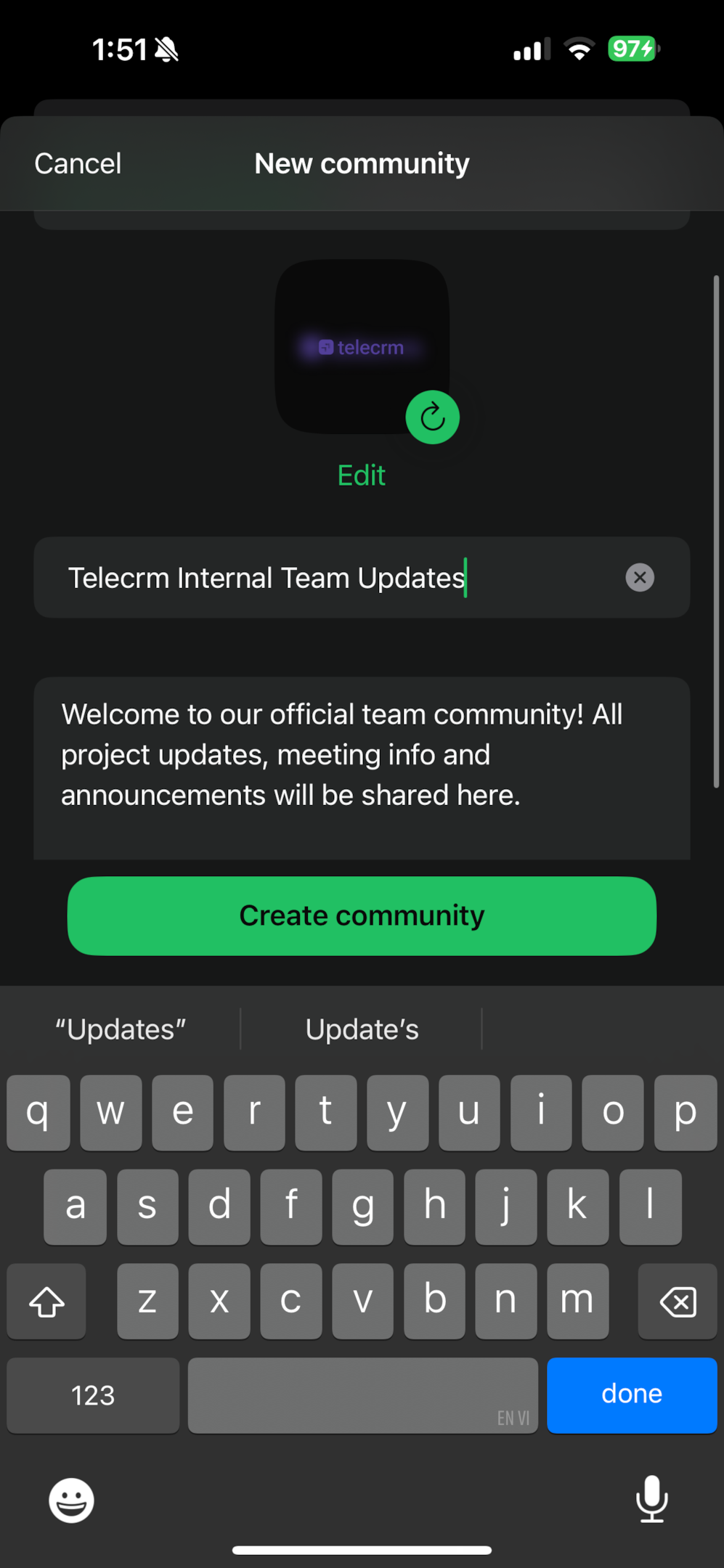
WhatsApp now asks you to:
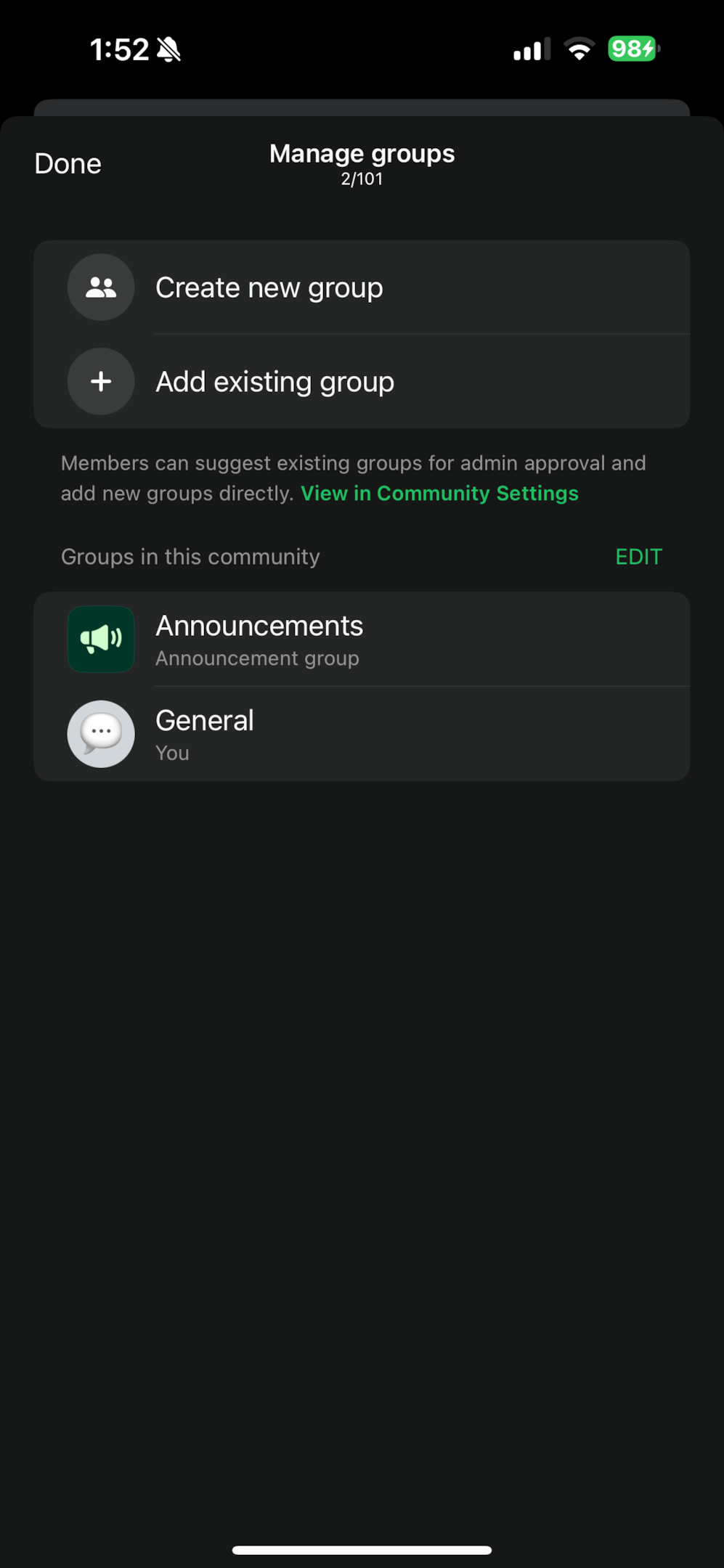
Before tapping create, check your admin settings:
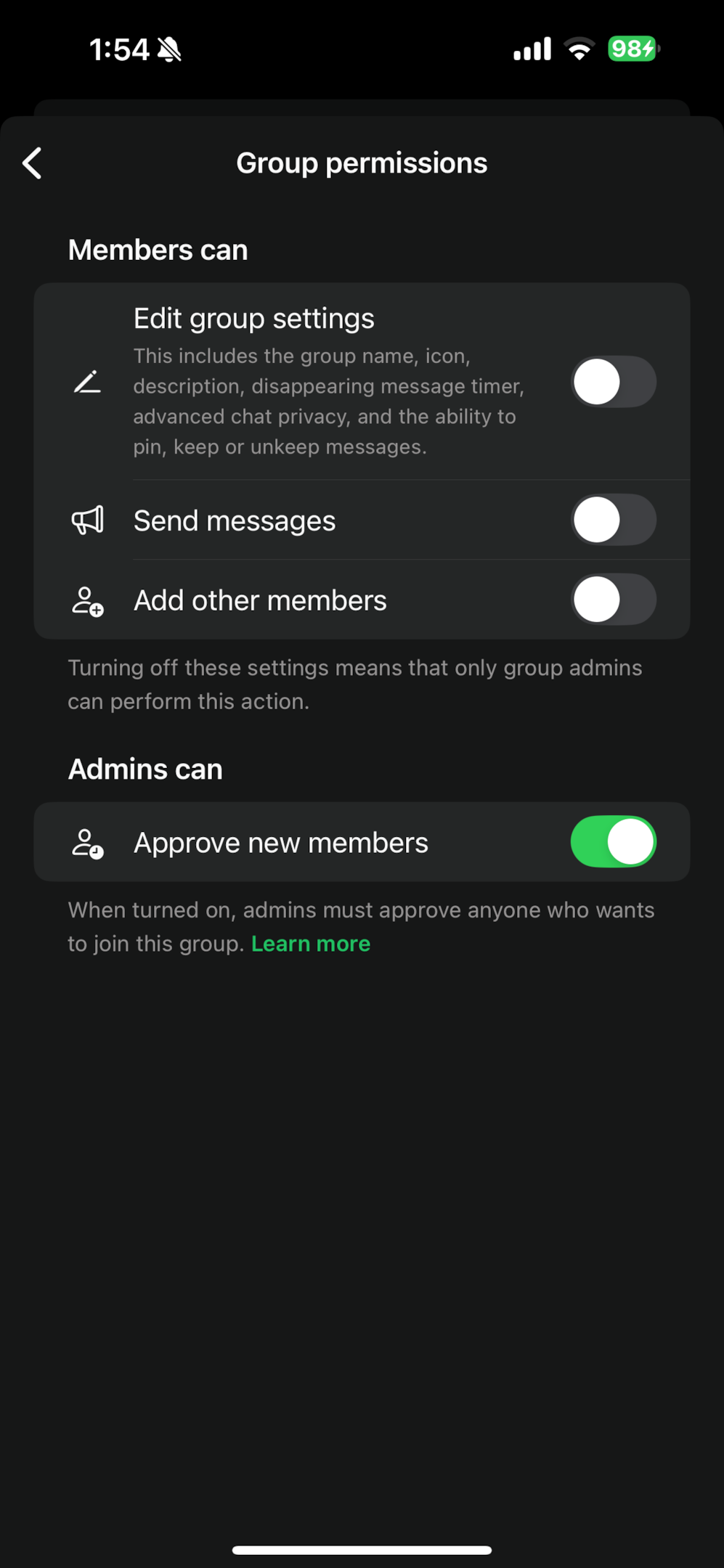
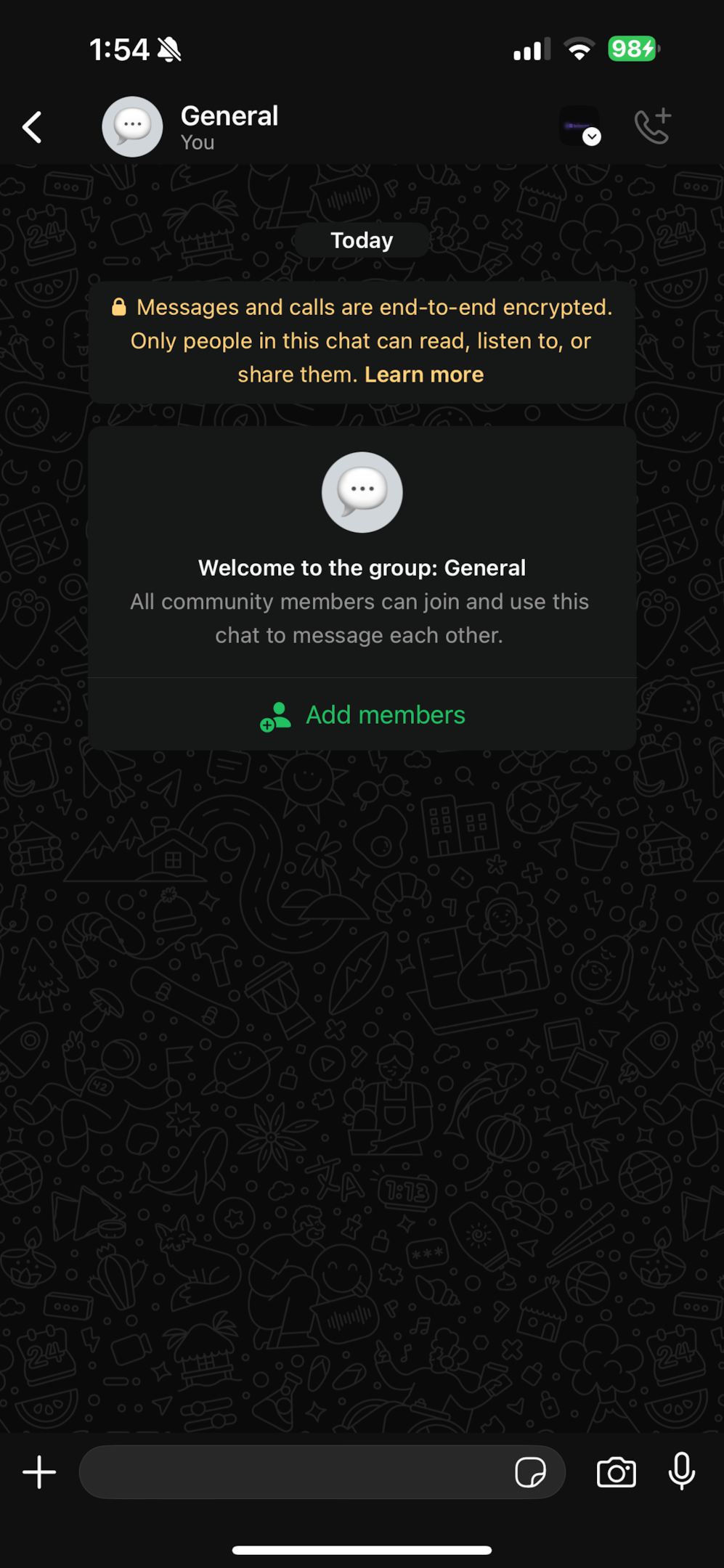
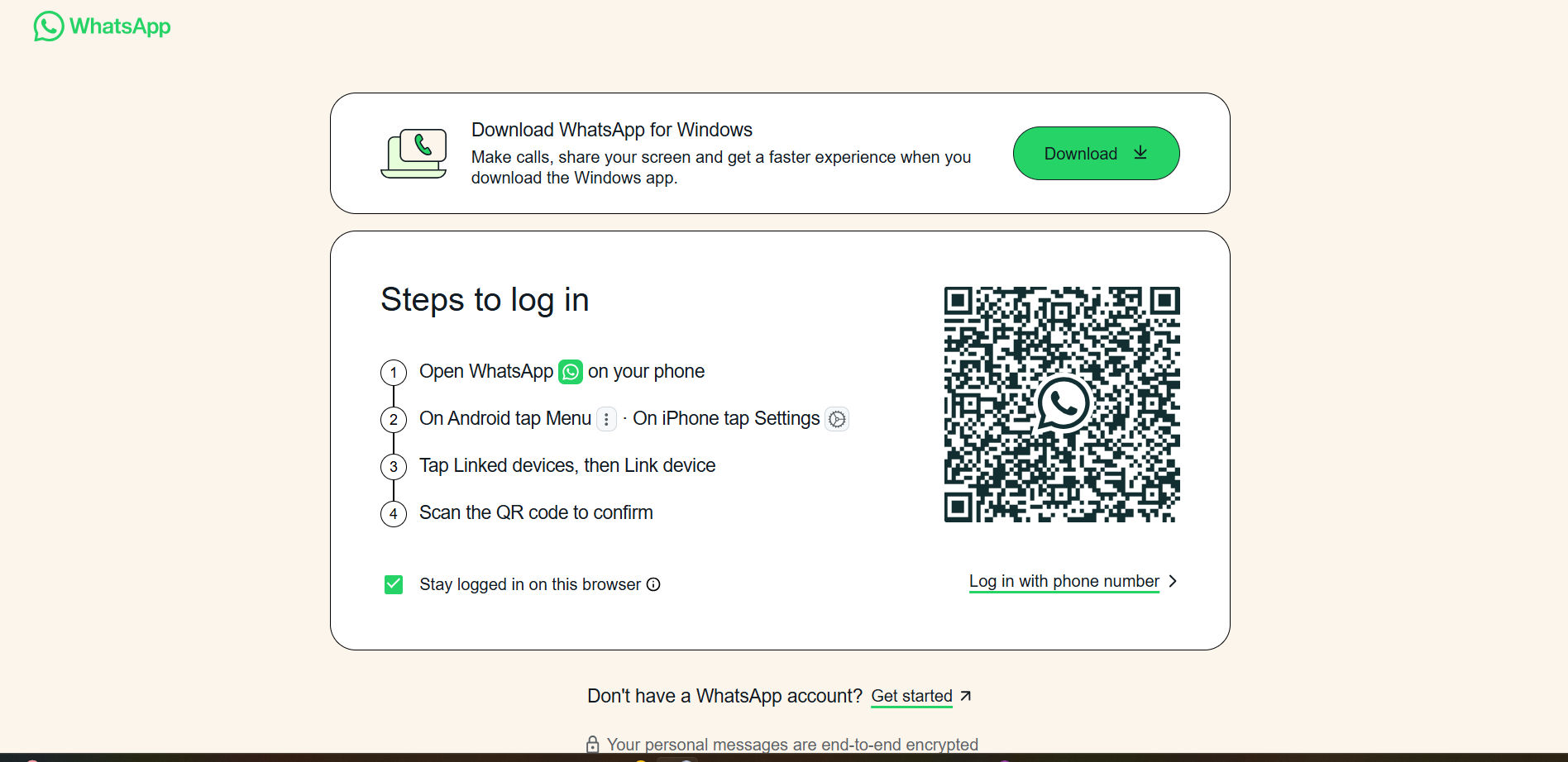
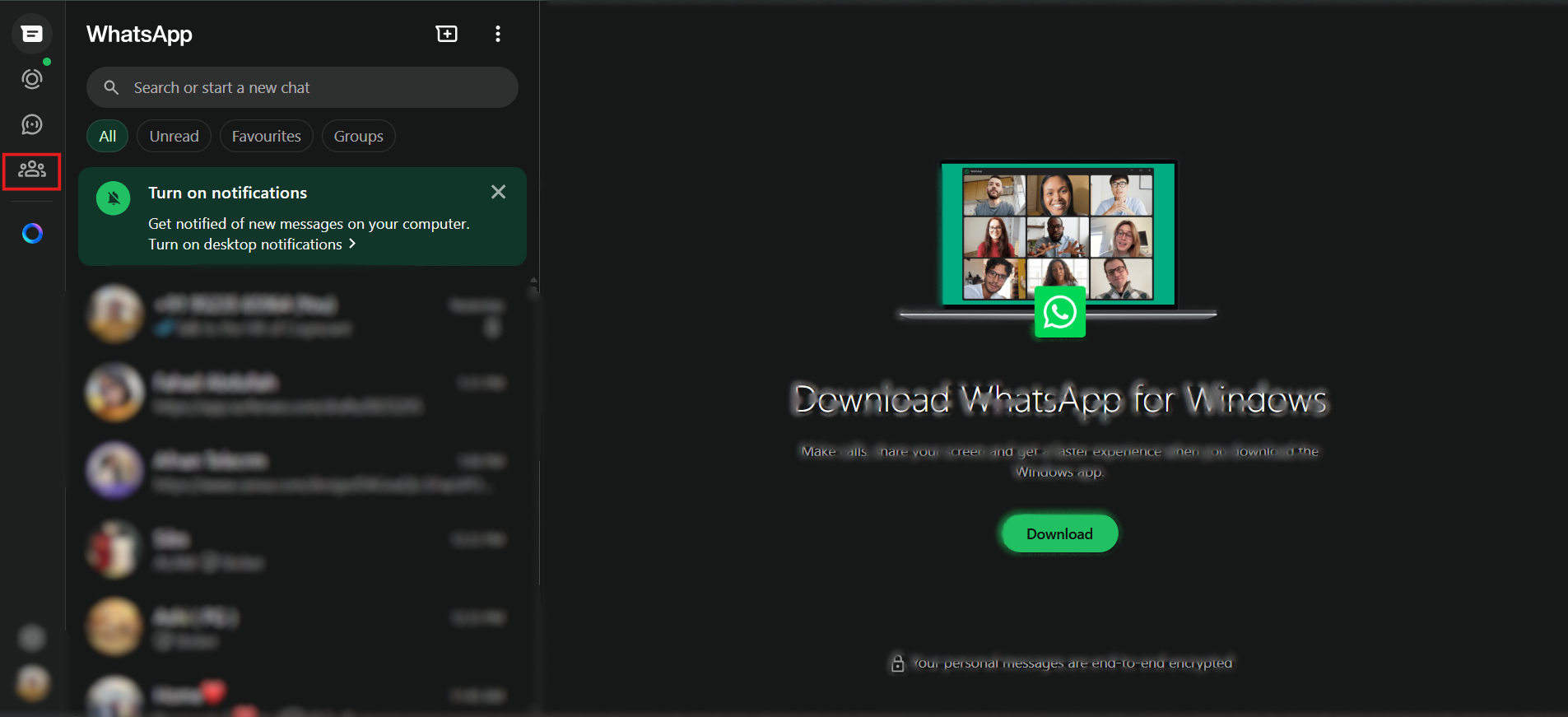
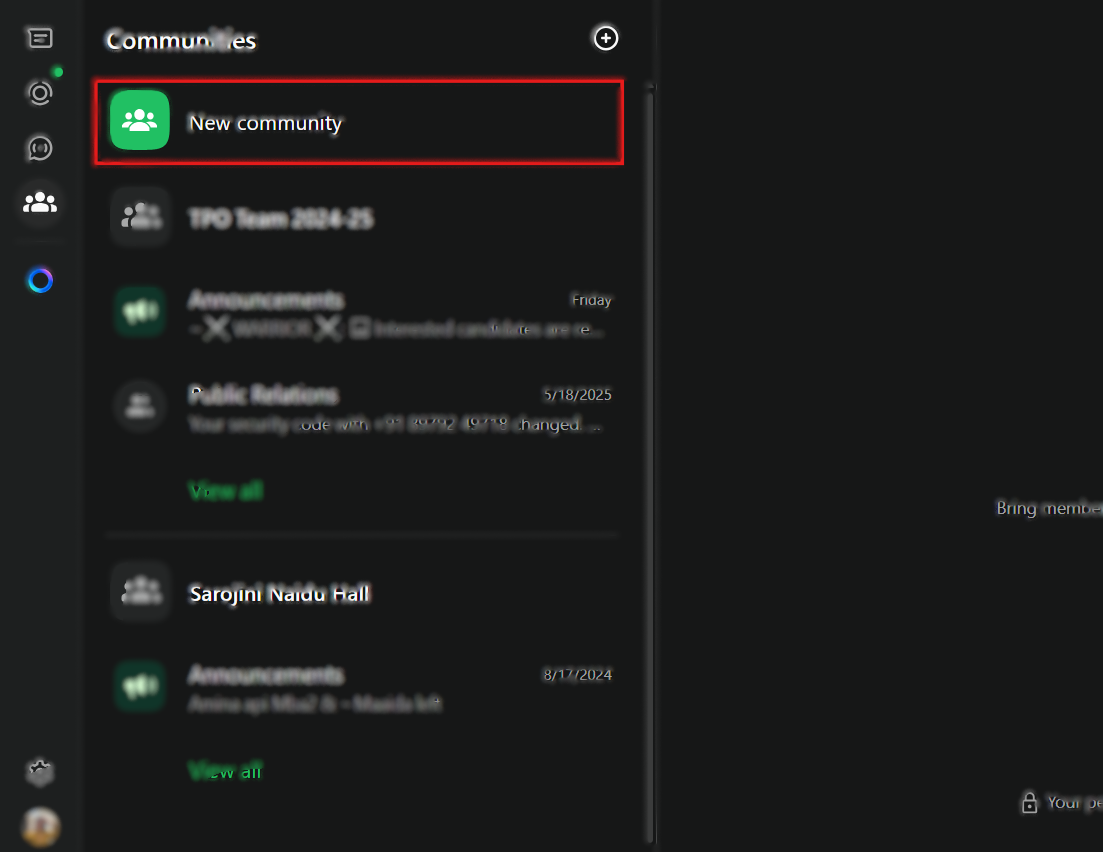
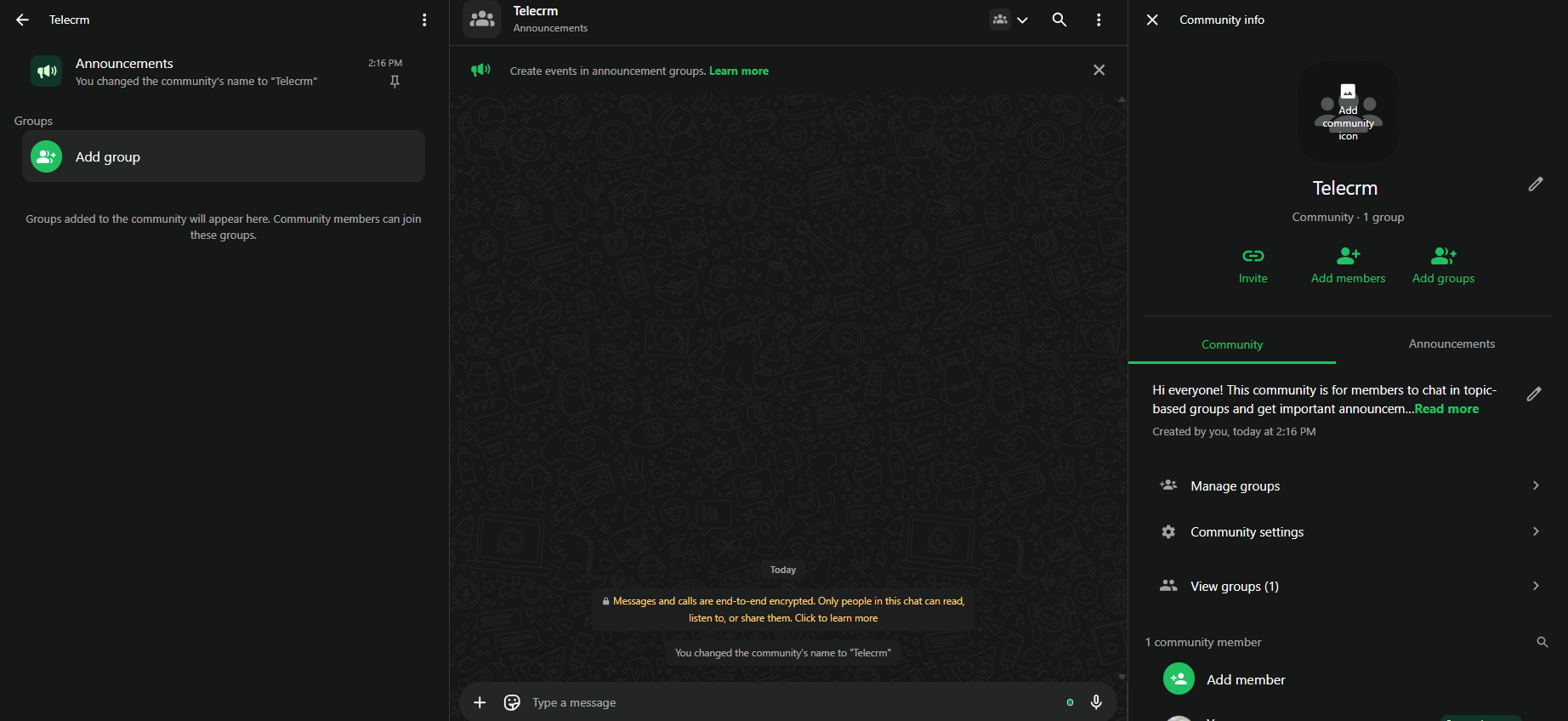
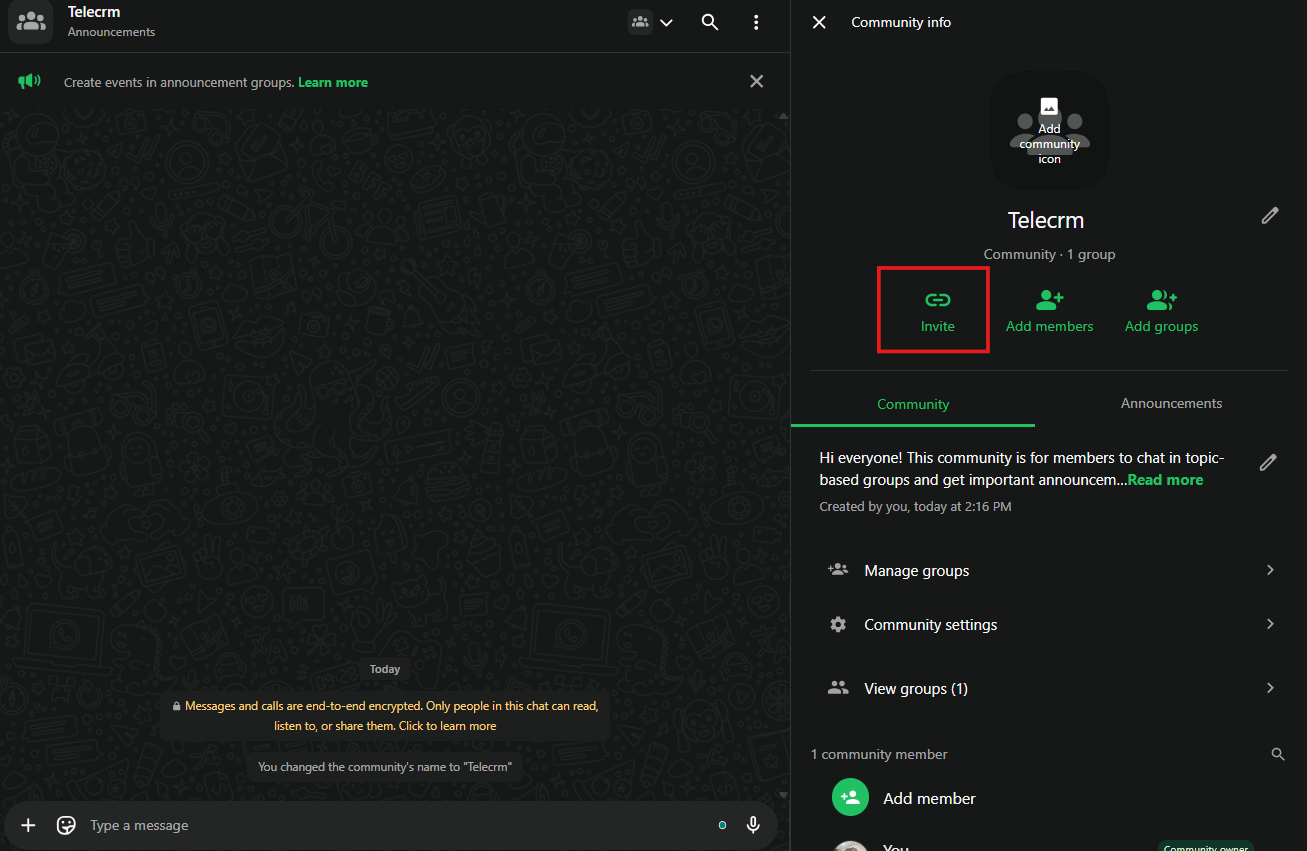
If you prefer using WhatsApp Web, you can also create and manage your community from there. While the options are mostly the same as on mobile, the layout is slightly different.
Follow these steps:
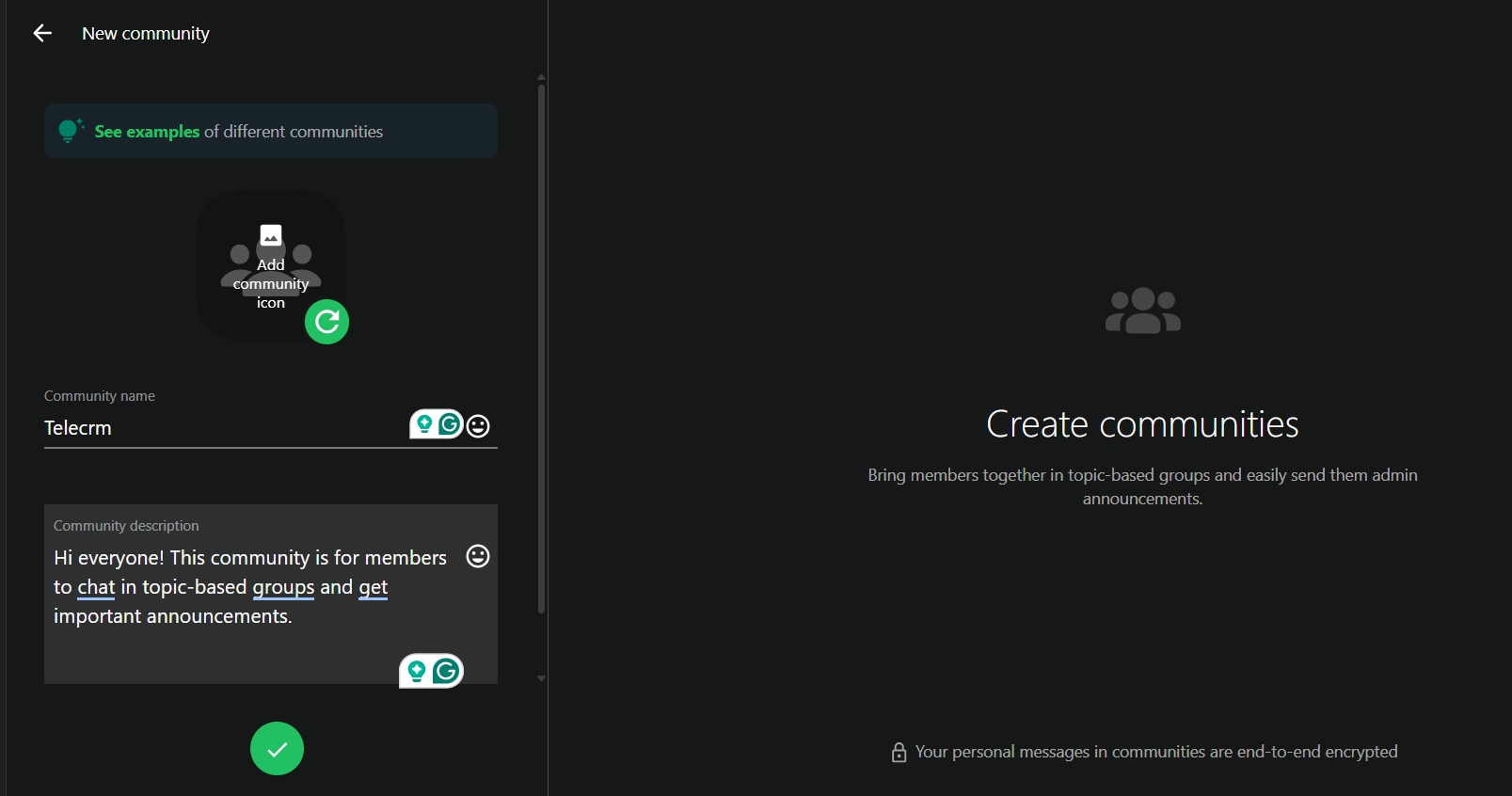
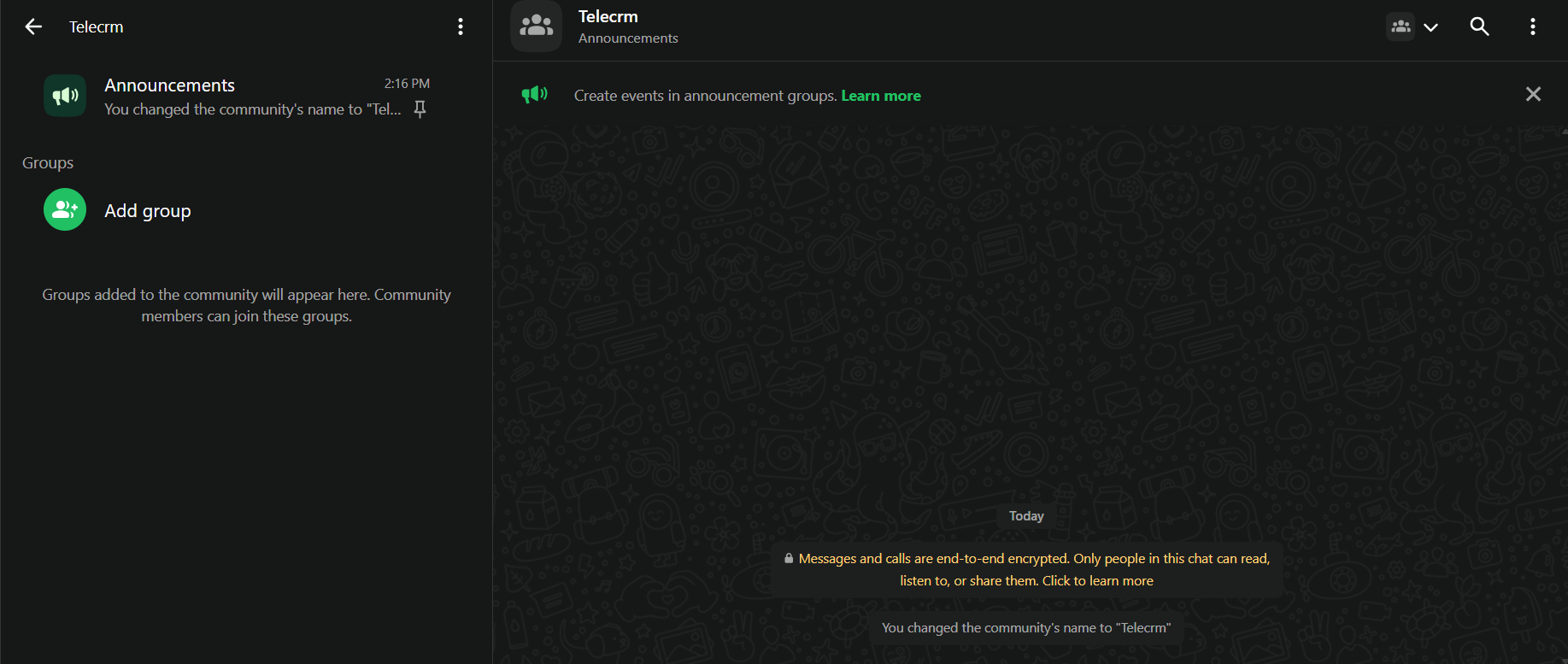
Review the settings:
One of the biggest advantages of using WhatsApp communities over regular groups is that you’re no longer limited to just 1,024 members in a single chat.
Here’s exactly how the numbers work:
For smaller groups, regular WhatsApp chats might be enough. But if you’re handling customer communications, running a school, managing an event or leading a club, these limits make it much easier to:
WhatsApp communities are built to help you manage conversations at scale, without getting messy or losing control.
Here are the key features that make WhatsApp communities useful for businesses, schools and large organisations:
Every community includes an announcement group where only admins can send messages. You can use it for:
✅ Benefit: Everyone in all linked groups receives the same message at once without spam or chat clutter.
When members join your WhatsApp community:
✅ Benefit: Helps protect personal information, especially in larger or public communities.
Admins have full control:
✅ Benefit: Keeps your community well-managed even as it grows.
All chats, including announcement group messages and subgroup chats, are secured with end-to-end encryption.
That means:
✅ Benefit: Builds trust with your members or customers.
Inside community groups, you can:
✅ Benefit: Saves time and makes coordination easier without needing extra tools.
Setting up your WhatsApp community is just the first step. Managing it well is what keeps things organised, easy to use and valuable for everyone involved.
Here are a few practical tips to help you run your community better:
Instead of a random name like “My Group,” use something specific:
This way, members instantly know what the community is about before they join.
Keep your announcement group conversations focused on important updates only.
Avoid casual messages here — this is meant for:
Check your community setup once in a while:
This helps avoid clutter and keeps your community running smoothly as it grows.
Now that you know exactly how WhatsApp communities work, you can set them up for your business, school or society in just a few clicks. It’s a simple way to organise different groups, share announcements from one place and keep things neat instead of juggling five separate chats.
However, here’s something to consider — if you’re running a business, especially one that involves a large volume of leads, customers or team coordination, WhatsApp communities are just one part of the puzzle.
They’re great for basic updates. But they won’t help you with:
That’s where telecrm’s WhatsApp CRM comes in. It’s designed for businesses that want to utilise WhatsApp more effectively — not just for chatting, but for driving sales, managing leads and handling support without losing control.
So if you want to take your WhatsApp setup beyond just groups and communities, book a free demo today. We’ll show you exactly how it can work for your business.
Open WhatsApp, tap the Communities tab, then tap New community. Add your community name, description, profile photo and add existing or new groups. Set admin controls and privacy settings, tap Create and share your community link.
No, WhatsApp requires at least one group to be linked when setting up a community. You can either add an existing group or create a new group while creating your community.
If you don’t see the community option in WhatsApp Business, make sure your app is updated to the latest version. Communities are rolling out gradually, so it may not be available for all accounts yet. Check for updates in your app store.
WhatsApp communities help you manage multiple groups under one umbrella. You can send announcements to all groups at once, control who posts and protect member privacy—ideal for businesses, schools or large teams.
Yes, creating and using WhatsApp communities is completely free. There are no extra charges for setting up a community, adding groups or sharing updates.
No, you can’t directly convert an existing group into a community. You’ll need to create a new community first and then add that group under it as one of the linked groups.



© Copyright 2025 Telecrm.in - All Rights Reserved • Privacy Policy • T&C



© Copyright 2025 Telecrm.in - All Rights Reserved • Privacy Policy • T&C