

Have you ever received an instant reply after messaging a business on WhatsApp? That’s WhatsApp’s auto reply message at work.
As a business owner or someone in sales, you’re constantly juggling multiple tasks. Responding to every WhatsApp message in real-time can be overwhelming, leading to delayed responses, missed opportunities and even potential customers slipping through the cracks.
The solution? WhatsApp auto-reply messages. In this blog, we’ll tell you all about WhatsApp auto reply message, their types, how you can set them up on WhatsApp Business and the 11 best auto-reply message samples that you can use for your business.
A WhatsApp auto-reply message is a preset response that automatically gets sent to anyone who messages your WhatsApp Business account. It is a 24/7 query-handling tool. Whether you’re in a meeting, on a sales call, taking that well-deserved break or if you receive a customer message after business hours, an auto-reply message ensures that no query goes unanswered.
How it works: The process is simple. You create a message or a series of them tailored to common inquiries or general greetings. When a customer sends you a message, the system instantly sends your preset reply. It’s like setting up an email out-of-office response but for your business conversations on WhatsApp.
No matter what you’re doing, your customers get an instant reply. It’s like assuring them that you’re there for them without even being there.
Each auto-reply is a chance to show how professional your business is. Consistent, well-crafted responses make a great impression.
These auto replies handle the small stuff, giving you more time to focus on the big deals. Think of it as having an assistant who’s always on duty.
Got a sale coming up or heading out for a break? Customise your messages for any scenario. It’s your business’s voice, versatile and always relevant.
A quick, friendly auto-reply is the first step towards a great customer relationship. Remember, it’s all about making them feel heard right from the start.

Setting up auto-reply messages on WhatsApp Business is a straightforward process. Here’s a step-by-step guide to get you started:
If you haven’t already, download the WhatsApp Business app from your app store and set up your business profile. This includes adding your business name, description, contact information and business hours.
Also Read: How to change your WhatsApp to Business account in case you wish to use your existing number for WhatsApp Business.
Once your profile is set, tap on the three dots in the top right corner of the app to open the menu. Select ‘Business tools’. There you’ll see three types of auto-reply messages:
Greeting
Away
Quick replies
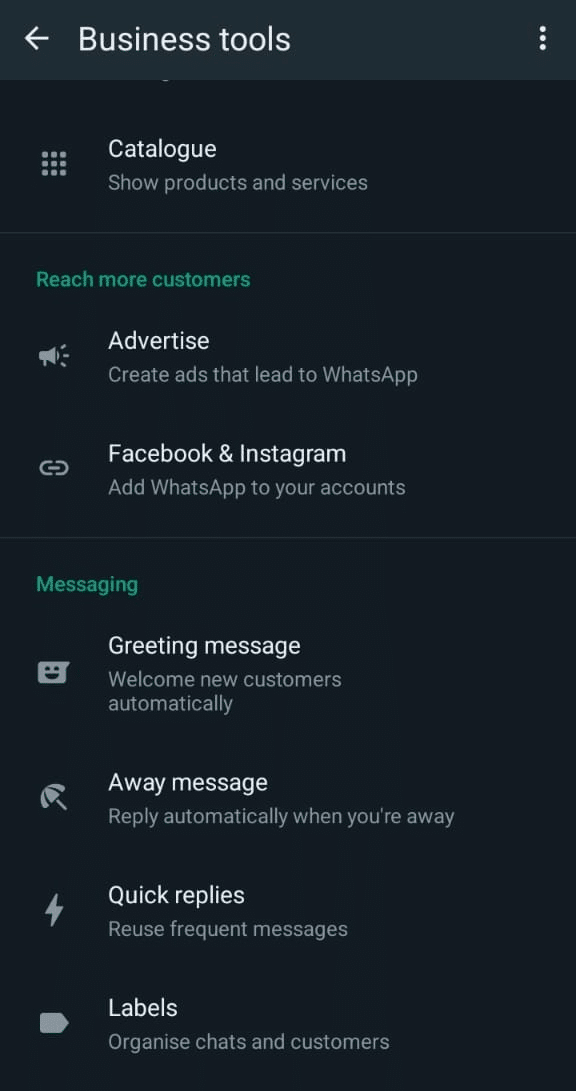
As the name suggests, a greeting message is automatically sent whenever someone initiates a conversation with you on WhatsApp.
Tap the toggle switch to enable the feature.
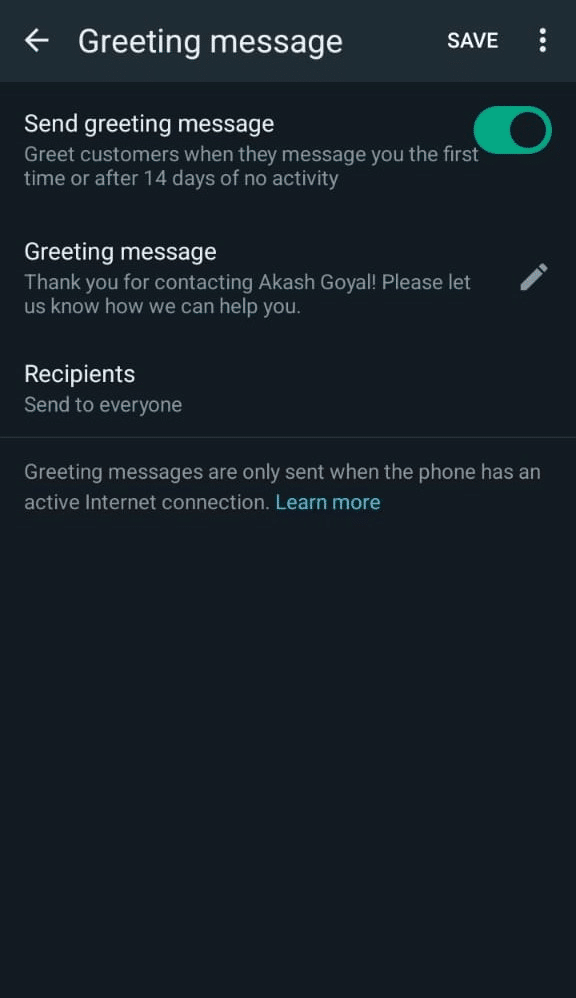
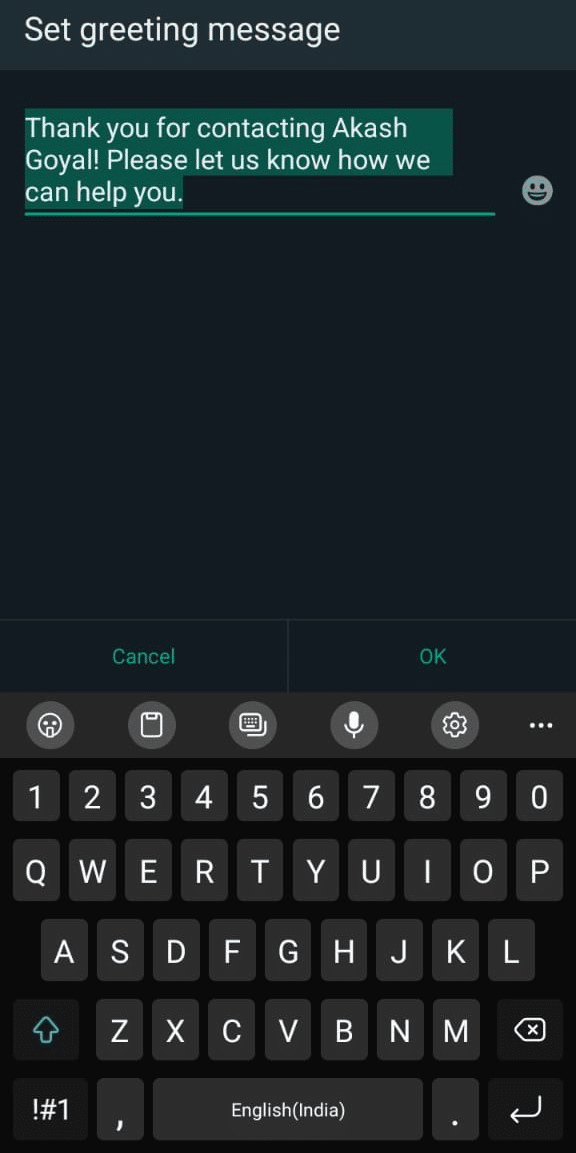
Write the greeting message you want your customers and prospects to see when they first message you.
Select who will receive your message from the list of options.
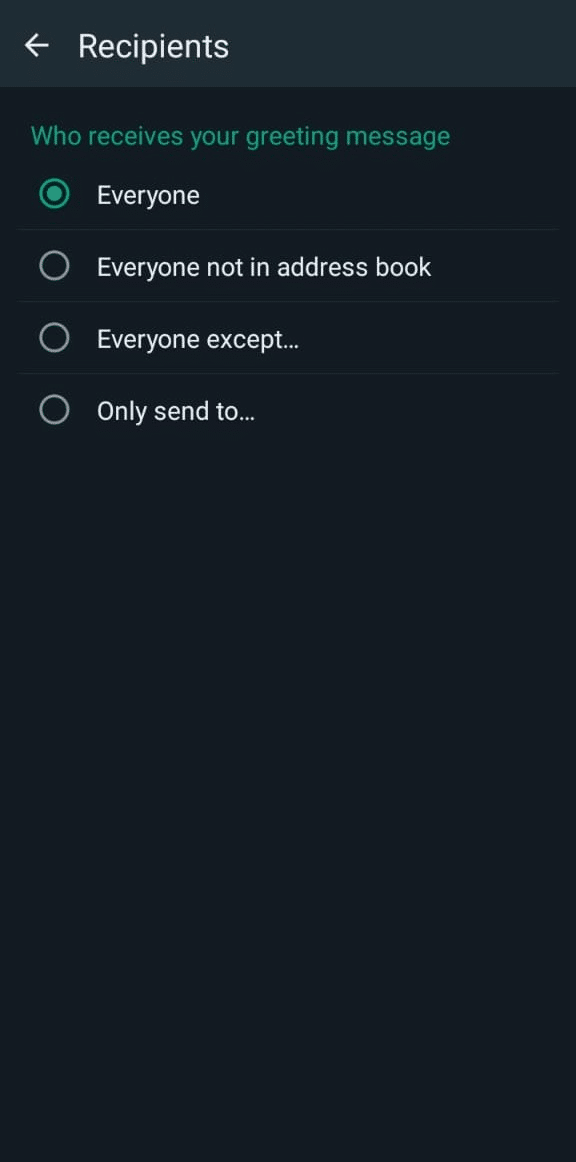
Away messages are automatically sent to your prospects and customers whenever you’re not available to reply to them.
You can set customisable away messages for any situation — whether it’s about pricing, features, office timing or anything else. It ensures that your prospects and customers are not left hanging.
In the ‘Away Message’ section, toggle the switch to turn on the feature. This will enable you to start creating your auto-reply messages.

Now it’s time to write your auto-reply message. Keep it clear, concise and reflective of your business tone.
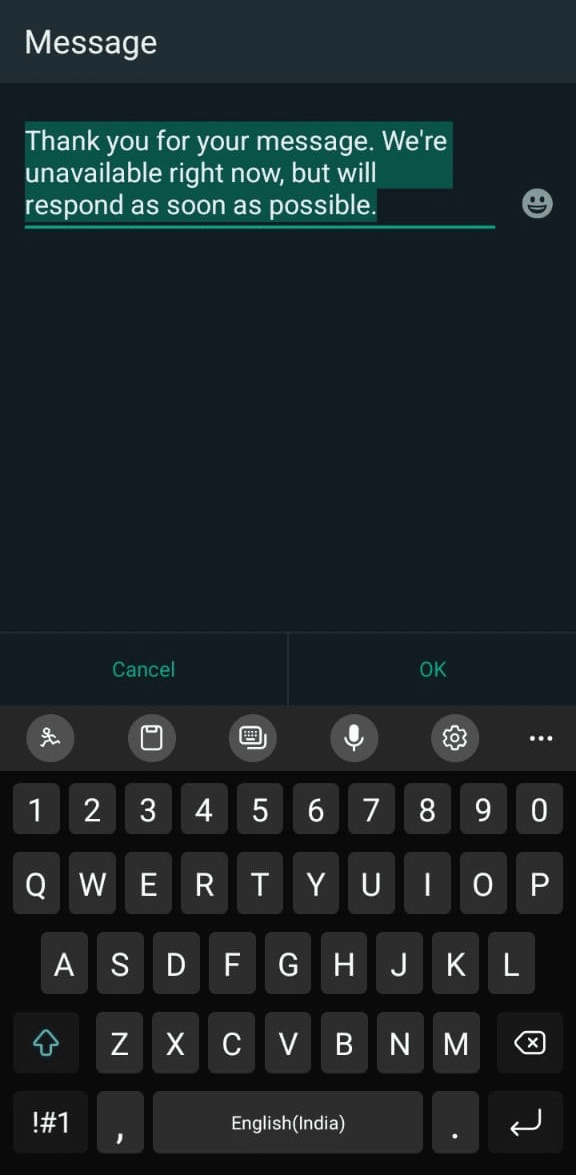
Note: You can only create and apply one away message at a time.
Schedule when you want the message to be sent based on the options: ‘custom schedule’, ‘always send’ and ‘after business hours’.
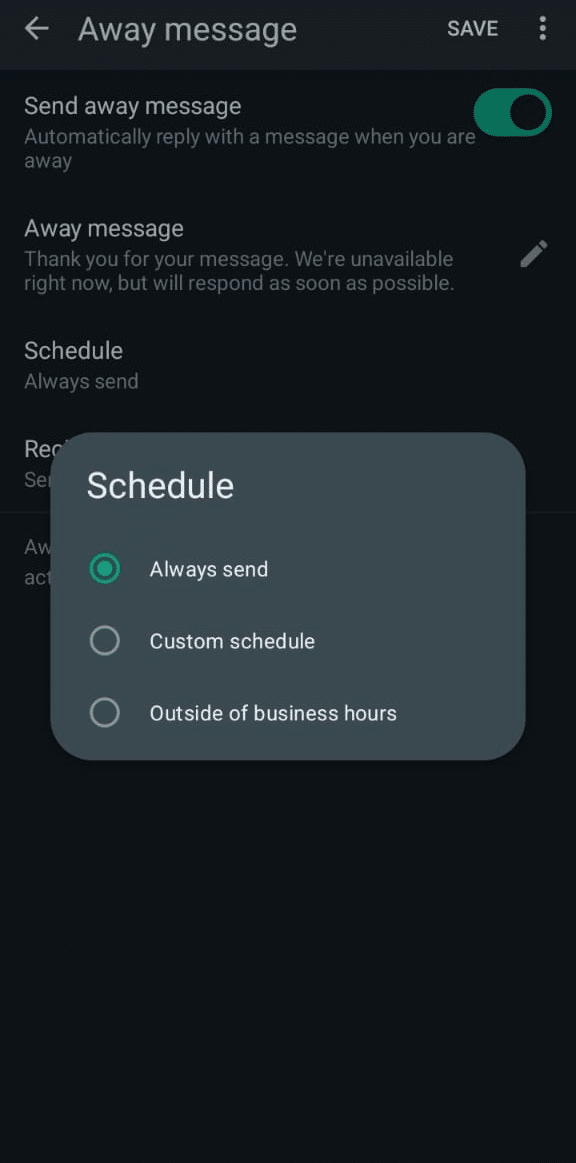
Select who will receive your message from the list of options.

Quick replies are technically not auto-replies. They are customisable message templates that can be used to answer common queries without having to type the entire message.
For example, if you want to send the pricing of your product, you can simply click ‘/’, select the preset pricing message template and send it to your customers directly. This way, you won’t have to type the same message all over again every time someone inquires about pricing.

Pro Tip: Create multiple quick replies for common queries on WhatsApp Business- for order confirmation, feature listing, pricing, demo, call, etc. This way, you’ll save a lot of time in handling repetitive queries.
Once you’re satisfied with the message you’ve composed and the associated settings, hit ‘Save’. Your auto-reply message is now set and will deploy automatically based on your chosen preferences.
It’s important to regularly check and update your auto-reply message. This ensures that your message stays relevant and effective despite any changes in your business operations or if you decide to roll out any special promotions or seasonal greetings.
Creating effective WhatsApp auto-reply messages can significantly enhance customer engagement and satisfaction. Here are 44 sample auto-reply messages that can cater to your various needs, ensuring your communication is always on point:
When someone just says “Hi,” sends a question or makes a vague request.
1.“Hi there  Thanks for your message! Please share a bit more about what you’re looking for so we can help you better.”
2.“Hey! Thanks for reaching out to [Company Name]. One of our team members will reply shortly.”
3.“Hello!  Your message has been received. Please expect a reply from our team within a few hours.”
4.“Thanks for connecting with us! We’ll get back to you as soon as we can.”
Use these during holidays, sales events, webinars or expo participation.
1.“Thanks for messaging us! Our team is currently attending [Event Name]. We’ll get back to you after [date]. Meanwhile, check this: [link].”
2.“ It’s festival time! We’re celebrating [Festival Name] and will respond after [date]. Thanks for your patience and have a great day!”
3.“Hi! We’re at [Expo Name] till [Date]. Want to visit us? Stall No: X. We’ll reply once we’re back in action!”
4.“Hello  We’re currently hosting a webinar and might be a little slow to respond. If urgent, call us at [Phone].”
5.“Hey! We’re offline today for a team event. We’ll reply to all messages on [Date]. Appreciate your understanding!”Useful when your service, site or app is down.
1.“Oops! We're facing a small tech hiccup right now. Our team is fixing it and we’ll update you shortly.”
2.“Thanks for reaching out. We're aware of the issue and working hard to resolve it. We'll ping you once it's sorted!”
3.“Hi! We’re experiencing a temporary outage. Sorry for the inconvenience. You’ll hear from us soon.”
4.“Hey! If you're facing trouble accessing [Product/Service], please know we’re on it. Sit tight, we’ll notify you once fixed.”
5.“Hey there! We’re undergoing scheduled maintenance till [time/date]. Service will resume shortly. Thanks for your patience!”Use when your team is off-duty or after business hours.
1.“Hi! You’ve reached us after hours. Our working hours are [Time – Time, Day – Day]. We’ll reply when we’re back.”
2.“Thanks for your message! We’re currently offline. Expect a response by [time tomorrow/morning].”
3.“Hello  Our team’s logged off for the day, but we’ll get back to you soon. Thanks for reaching out!”
4.“Hey! We received your message outside our working hours. We’ll prioritise your query first thing tomorrow.”
5.“Hi there! Our team’s away at the moment. You can call us during [working hours] or we’ll message you back soon.”
When you’re temporarily unavailable or on another call.
1.“Hey! I’m currently attending to another customer. I’ll reply shortly. Thanks for waiting ”
2.“Hi! I’m on another call right now. I’ll respond as soon as I can. Appreciate your patience.”
3.“Thanks for your message! I’m away from my desk for a bit. Will get back soon.”
4.“I saw your message but can’t reply immediately. Please bear with me — I’ll respond shortly.”
5.“Hi there! Currently tied up with something urgent. I’ll respond soon. Thanks!”For fresh inquiries or first-time contacts.
1.“Hey there!  Thanks for reaching out to [Your Business Name]. A team member will get in touch soon.”
2.“Hi! We’ve received your message and are reviewing your query. You’ll hear from us soon!”
3.“Thanks for your interest! You’ve reached [Your Brand]. We’ll connect with you shortly to assist further.”
4.“Hello! We’re glad you contacted us. We’ll review your message and respond within [Time].”
5.“Hi! Welcome to [Company Name]! Sit tight, we’ll be with you soon.”To acknowledge queries that come after an initial interaction.
1.“Hey again! We’ve received your follow-up. Our team will check and respond shortly.”
2.“Thanks for the update! We’ll take this forward and reply soon.”
3.“We hear you! Your message has been added to the same conversation. A team member will respond soon.”
4.“Thanks for getting back to us! We’ll continue from where we left off.”
5.“Hey! Appreciate your follow-up. We'll reply shortly and help you move forward.”Useful when someone wants to stop communication.
1.“Hi! You’ve been added to our Do Not Disturb list. You won’t receive further messages from us.”
2.“Understood. We won’t reach out again. If you change your mind, just drop us a message!”
3.“Thanks for informing us. You’ve been opted out of future updates.”
4.“Your number has been removed from our promotional list. No more messages from our side.”
5.“We respect your choice. No further communication will be sent unless you contact us again.”When someone books a meeting or shows interest in a demo. Great for CRM, SaaS or services.
1.“Hi! Thanks for booking a demo with us You’ll receive a confirmation email and a call before the session.”
2.“Awesome! You’re confirmed for a [Product Name] walkthrough. We’ll show you how to [benefit].”
3.“Demo booked. You’re all set! We’ll call you at [Time] on [Date].”
4.“Looking forward to connecting! In your demo, we’ll cover how teams like yours use [Product] to grow faster.”
5.“Hey! Your appointment has been confirmed. We’ll message you again with a reminder closer to the time.”
Let’s take a quick look at how auto-replies on WhatsApp can save your time and improve customer experiences.
Reports show that 35% more customers respond quickly when businesses use auto-replies or chatbots for communication. Additionally, 95% of WhatsApp messages are seen within just 3 minutes, keeping the leads engaged.
Auto-replies can cut your support costs by up to 30% by automating routine queries like pricing, availability or booking confirmations. And that’s not all, they also help reduce cart abandonment significantly by sending timely follow-ups and nudges on WhatsApp when leads go cold or stop mid-way.
81% of consumers are willing to spend more with brands that offer good conversational experiences. WhatsApp auto-replies are the first step in creating that kind of consistent, instant and helpful engagement.
Implementing WhatsApp auto-reply messages effectively can yield amazing results for your business. If done well, you can even improve your conversion rates considerably.
Here are some of the best practices for crafting an effective auto-reply message:
Auto-reply messages on WhatsApp offer a simple yet effective way to maintain continuous engagement with your customers, ensuring they always receive a timely response.
Auto replies are mainly of 3 types:
You can set only one greeting and away message at a time. On the other hand, you can set as many quick replies for different situations at the same time.
So. That’s about it. Until the next article, bbye!
Also Read: WhatsApp automation to learn how you can leverage WhatsApp to schedule automatic messages, qualify leads, send bulk messages and deploy chatbot on WhatsApp.
Yes, you can set an automatic reply on WhatsApp using the WhatsApp Business app or WhatsApp Business API. The feature allows you to create messages that are automatically sent in response to incoming messages when you’re unable to reply immediately.
To create an auto message on WhatsApp Business:
The best auto reply for WhatsApp is clear, concise and informative. It should acknowledge the receipt of the message, provide an estimated time for a response and offer alternative contact information if urgent.
Tailor the message to fit your brand’s tone and the specific needs of your customers.
To automate WhatsApp messages on Android, you can use the WhatsApp Business app to set up auto-replies for all incoming messages.
If you require more advanced automation, such as sending messages based on triggers or events, you’ll need to use WhatsApp Business API along with a third-party automation tool or service that integrates with it.



© Copyright 2025 Telecrm.in - All Rights Reserved • Privacy Policy • T&C



© Copyright 2025 Telecrm.in - All Rights Reserved • Privacy Policy • T&C